

Cloud Backup for PC: How It Works and Which Options to Consider
Picture this. You switch on your computer on a Monday morning and nothing happens. Maybe the hard drive died, maybe ransomware locked everything, maybe a coffee cup met a laptop. Either way, years of photos, tax records and work files are suddenly at risk.
This is the exact moment people discover why cloud backup for PC matters. A cloud backup keeps a safe copy of your files on remote servers, so a broken machine doesn’t mean lost memories or lost income.
In this guide you’ll learn how cloud backup works, what separates a good service from a mediocre one, how the main options compare, and how to set up automatic cloud backup in about fifteen minutes. We’ll keep it plain and practical, whether you’re in the United States, India, Europe or anywhere else.
What Is Cloud Backup for PC?
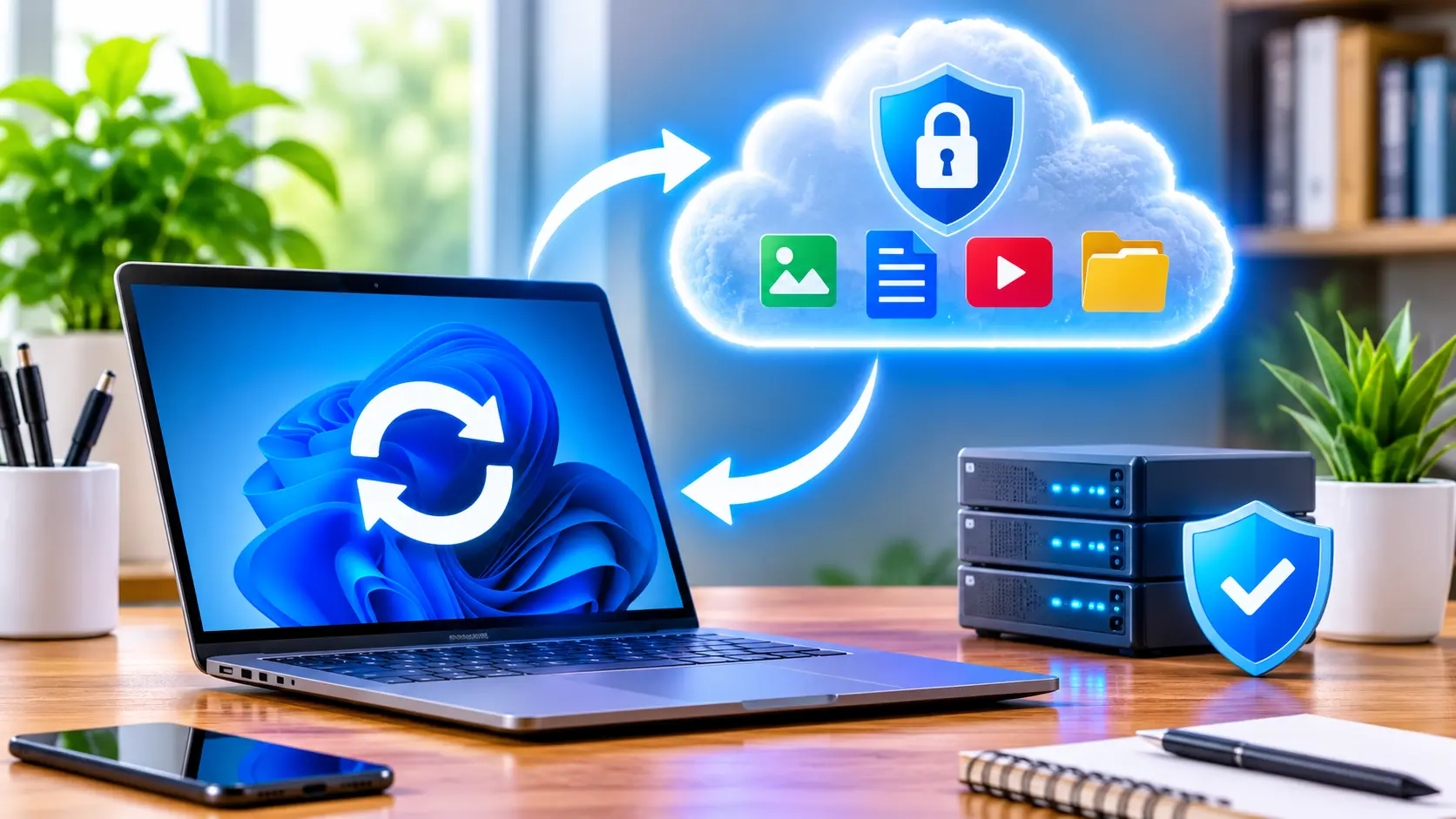
Cloud backup for PC is a service that automatically copies the files on your computer to secure servers over the internet, so you can restore them if your device is lost, damaged, stolen or infected.
That’s the short answer. The longer one is worth knowing, because people often confuse a few related ideas:
- Backup is a duplicate copy of your data, kept somewhere else, for recovery after a problem.
- Sync (like a shared folder) mirrors changes across devices. If you delete a file in one place, it disappears everywhere.
- PC cloud storage is general-purpose space for files you want to reach from any device.
A true backup service keeps older versions and deleted files for a while. A plain sync tool often doesn’t. That difference has saved many people from an accidental overwrite or a ransomware attack that quietly encrypted their synced folders.
Cloud backup vs local backup
A local backup means an external hard drive or a second disk. It’s fast and cheap, but it sits in the same room as your computer. Fire, theft, flooding or a power surge can take out both copies at once.
Cloud backup lives offsite. Many experts therefore recommend using both, which brings us to the 3-2-1 rule: keep 3 copies of your data, on 2 different types of media, with 1 copy offsite. A cloud service usually covers that last, hardest piece.
How Cloud Backup Works
If you’ve ever wondered how cloud backup works behind the scenes, the process is simpler than it sounds.
- Install the software. You download a small backup app (cloud backup software) onto your Windows PC.
- Choose what to protect. Some tools back up everything by default. Others let you pick folders like Documents, Desktop and Pictures.
- The first full backup runs. This can take hours or even days, depending on how much data you have and how fast your upload speed is.
- Changes are tracked. After that first upload, the software only sends new or modified files. This is called incremental backup and it saves bandwidth.
- Data is encrypted. Reputable providers scramble your files before they leave your PC and store them in encrypted form on their servers.
- You restore when needed. If something goes wrong, you download individual files, or sometimes your whole system, from the provider’s website or app.
The key word is automatic. Once configured, automatic cloud backup runs quietly in the background, usually when your computer is idle or at a schedule you set. You don’t have to remember anything, which is exactly why it works. Manual backups tend to be forgotten right before disaster strikes.
Why You Need Online Backup for PC
Hard drives don’t last forever. Most consumer drives are designed for a few years of regular use, and failures often arrive without warning. But hardware failure is only one risk. Here are the situations where online backup for PC really earns its keep:
- Ransomware and malware. Attackers encrypt your files and demand payment. A clean, versioned backup lets you restore without paying. (If you run a business, our guide to cybersecurity software for small businesses covers the protective layer that works alongside backups.)
- Theft or loss. A stolen laptop is bad enough. Losing everything on it is worse.
- Accidental deletion. Everyone has deleted the wrong folder at least once.
- Disasters. Fires, floods and storms don’t care about your external drive sitting next to the computer.
- Failed Windows updates or crashes. Occasionally a system problem forces a reinstall, and files go missing in the process.
For freelancers, students and small business owners, the loss of a single project folder can mean missed deadlines or lost clients. For families, it’s often irreplaceable photos and videos.
What to Look for in Cloud Backup Services
Not all cloud backup services are built the same. Before you hand over your files, check these points.
Security and privacy (secure cloud backup)
Secure cloud backup starts with strong encryption, ideally AES-256 for stored data and TLS for data in transit. Look for these extras too:
- Private or zero-knowledge encryption, where only you hold the key. The trade-off: if you lose the key, the provider can’t recover your data.
- Two-factor authentication on your account.
- Clear data-protection practices. If you’re in Europe, check for GDPR compliance. If you handle health or financial data in the US, check whether the provider supports the rules that apply to you.
- Data center location options, which matter to some users for legal or latency reasons.
Automatic scheduling and continuous protection
The best personal computer backup solutions run continuously or on a schedule you control. Look for options like “back up every hour,” “back up when idle,” and bandwidth throttling so uploads don’t slow down your video calls.
File versioning and retention
Versioning keeps earlier copies of a file. This is your safety net against ransomware and accidental edits. Check how long deleted files and old versions are kept: 30 days is common, while some plans offer a year or more.
Storage limits and pricing
Some providers charge per computer with unlimited storage. Others charge by the terabyte across multiple devices. Neither is better in every case. If you have one PC with a big photo library, unlimited single-computer plans are often a good fit. If you have a family with several devices, a pooled storage plan may cost less.
Prices change often and vary by region, so always check the provider’s current pricing page before you decide.
Restore options and speed
A backup is only useful if you can restore it. Ask: can you restore single files quickly? Can you get a large restore shipped on a physical drive? Is there a mobile app? These details rarely show up in marketing pages, but they matter on the worst day.
Ease of use
If the software is confusing, you’ll avoid it. A clean interface and sensible defaults beat a long list of features you never touch.
Best Cloud Backup for PC: Options to Consider
There’s no single best cloud backup for PC for everyone, since your needs, budget and technical comfort differ. Below is a fair overview of well-known choices. Features and prices change, so treat this as a starting point and confirm details on each provider’s website.
Backblaze
Often praised for simplicity. It installs quickly, backs up your computer’s files automatically, and typically uses a straightforward per-computer pricing model. A good pick if you want to set it up once and forget it.
IDrive
A flexible service that can back up multiple devices under one account, with versioning and options for both personal and business use. Suited to households with several computers and phones.
Acronis Cyber Protect Home Office
Combines backup with anti-malware features and full-disk imaging, which lets you restore an entire system rather than just files. It has more going on, so it suits people who want an all-in-one approach.
Carbonite
A long-established name aimed at everyday users and small businesses, with automatic backup and an easy interface. Check which plan includes the features you need, since some are tied to higher tiers.
Microsoft OneDrive
Already built into Windows. OneDrive can sync your Desktop, Documents and Pictures folders, and paid Microsoft 365 plans include extra storage. It’s convenient and a good first layer, but remember that it behaves more like sync than a full backup, so pair it with versioning awareness and another copy of important data.
Google One and Google Drive
Useful if you already live in the Google ecosystem. Like OneDrive, it works well as PC cloud storage for documents and photos, though it isn’t designed for imaging a whole Windows system.
Privacy-focused picks: pCloud and Sync.com
If encryption and privacy are your top concern, these services offer client-side encryption options. They’re worth a look if you store sensitive documents.
Quick comparison table
| Need | Often a good match |
|---|---|
| Set-and-forget backup of one PC | Backblaze |
| Many devices, one account | IDrive |
| Full system image plus security | Acronis |
| Already use Windows and Microsoft 365 | OneDrive |
| Strong privacy controls | pCloud, Sync.com |
Most services offer a free trial or money-back window. Use it. Back up a test folder, then try restoring it before you commit.
How to Set Up Automatic Cloud Backup on Windows
Here’s a simple routine that works for most people.
- Take stock of your data. Check which folders hold things you can’t replace: documents, photos, email archives, project files, financial records.
- Pick a service using the checklist above and sign up.
- Install the app and sign in. Turn on two-factor authentication right away.
- Select your folders or accept the default selection if it covers your needs.
- Set the schedule. Continuous or hourly is ideal. Limit bandwidth if your connection is slow.
- Let the first backup finish. Leave the PC on and connected. If your upload speed is slow, this can take several days, which is normal.
- Test a restore. Download one file or folder to confirm everything works.
- Check in monthly. Open the dashboard and verify the last backup date. A backup that silently stopped three months ago isn’t a backup.
Tip for slower connections: many users in areas with limited upload speeds start with their most important folders first, then add the rest gradually.
Don’t skip the local copy
Remember the 3-2-1 rule. Keep an external drive with a recent copy too. If your internet is down when you need a restore, that drive gets you moving again fast.
Common Mistakes to Avoid
Over the years, the same errors show up again and again:
- Treating sync as backup. If ransomware encrypts your synced folder, the encrypted files can sync too.
- Never testing a restore. You only find problems when it’s too late.
- Forgetting about external drives and secondary disks. Some tools skip them by default.
- Ignoring email notifications. Warnings about failed backups matter.
- Choosing on price alone. The cheapest plan may lack versioning or have slow restores.
- Losing the encryption key. With private-key encryption, no key means no recovery.
Frequently Asked Questions
What is the best cloud backup for PC?
There isn’t one winner. Backblaze is popular for simple, automatic backup of a single computer, IDrive suits multiple devices, and Acronis fits people who want full system images with built-in security. Choose based on your storage needs, number of devices, privacy requirements and budget, and use free trials to compare.
Is cloud backup safe?
Generally yes, when you pick a reputable provider that uses strong encryption, offers two-factor authentication and has clear privacy policies. Your own habits matter too: use a unique password, turn on 2FA and keep your encryption key safe.
How much storage do I need for PC data backup?
Add up the size of the folders you want to protect, then leave room to grow. Many home users fit within one to two terabytes, while photographers and video editors may need more. Unlimited single-computer plans can be handy for large libraries.
Does cloud backup slow down my computer or internet?
It can during the first upload, but most cloud backup software lets you limit bandwidth or run backups only when the PC is idle. After the initial backup, only changed files upload, so the impact is usually small.
Is OneDrive enough as a Windows cloud backup?
It’s a good starting point and handy for syncing, but it isn’t a complete backup strategy on its own. For stronger protection, add a dedicated backup service or an external drive, and make sure you understand your version history and recovery options.
Conclusion: Protect Your Files Before You Need To
A computer failure is rarely dramatic in advance. It just happens. Cloud backup for PC takes the fear out of that moment by keeping a safe, encrypted, offsite copy of what matters most, updated automatically while you get on with your day.
The steps are simple: decide what you can’t afford to lose, compare a few cloud backup services, run a free trial, test a restore, and keep a local copy as a second layer.
Take 15 minutes today to start your first backup. Pick a provider, install the app and let it run overnight. Your future self will thank you. And if you run a business, pair your backups with the right security tools; our guide to cybersecurity software for small businesses is a good next read.
Note: Product features and prices change frequently. Verify current details on each provider’s website before purchasing.
More Read: Cybersecurity Software for Small Businesses: Features & Best Solutions
Health Site: Elesm.com